

Litmaps: Literature Mapping Tool that Accelerates Literature Review
— by Kanako Hayashi
Following our previous post on Connected Papers, we would like to introduce Litmaps, another literature mapping tool.
For many researchers, finding and organizing the right literature is one of the most challenging parts of a project. Literature mapping tools support literature discovery and help users visually understand how papers are connected through citations.
While Connected Papers visualizes related papers from a single seed paper, Litmaps allows you to build one map from multiple seed papers. It also offers alerts for newly published papers, which makes it especially useful not only at the beginning of a literature review, but also during the research and writing stages. In this sense, Connected Papers is more static, while Litmaps offers a more dynamic way to explore literature.
Using Litmaps
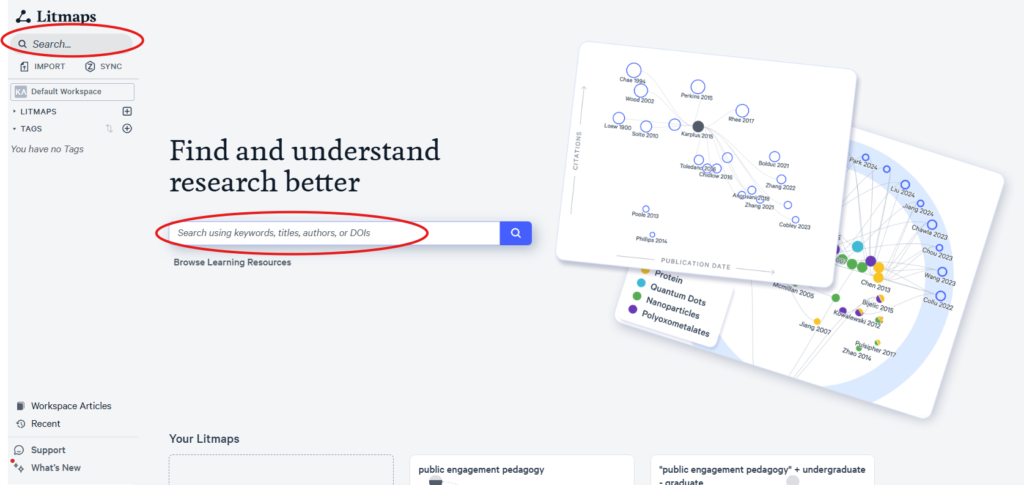
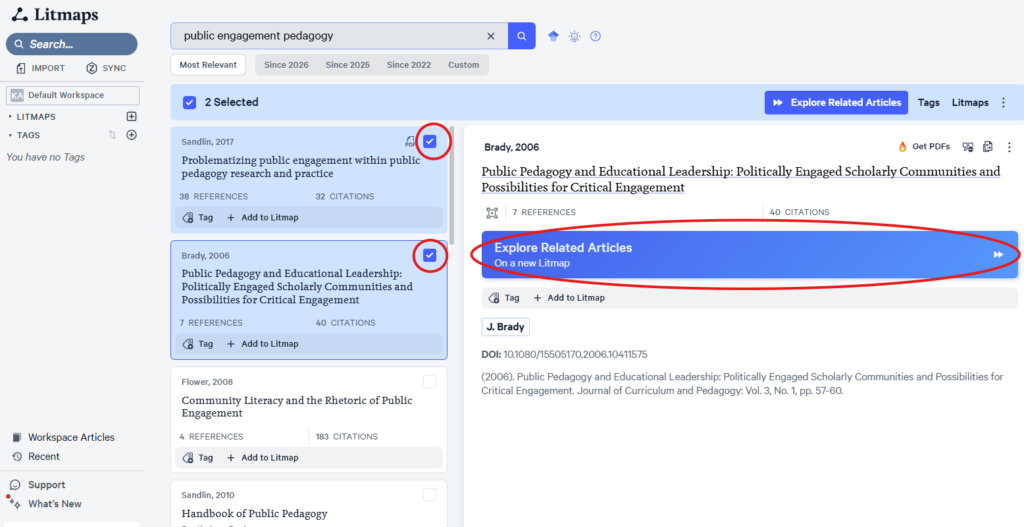
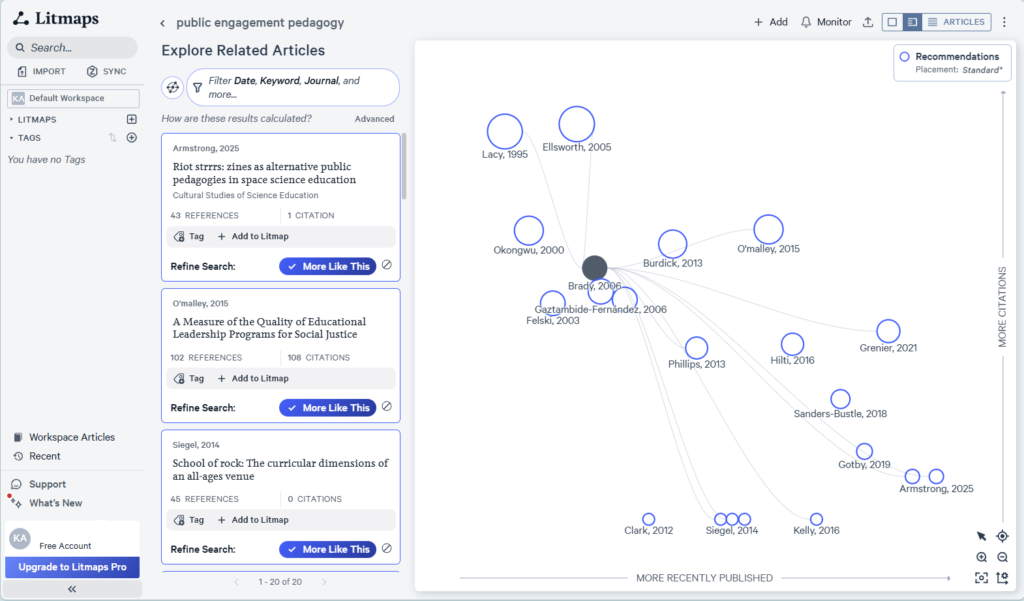
First, go to Litmaps and create a free account. Enter your keywords in the search field (Fig. 1), and an article list will appear. Select one or more articles that match your topic, then click “Explore Related Articles.” (Fig. 2) Litmaps will generate a map and display the selected articles visually (Fig. 3).
In the map, black circles represent articles that have been added, while white circles represent recommended articles. The lines show citation relationships. The default setting of the Y-axis is cite count, while that of X-axis is publication date, and the size of the circles is also cite count. By clicking an axis, you can also select a different variable, such as momentum or reference count. If you find a relevant article in the list or among the recommendations, click “More Like This” to add it to the same map. The map will then be updated with the new article and related results. Free accounts can create up to two Litmaps.
More useful features
- Monitor Function
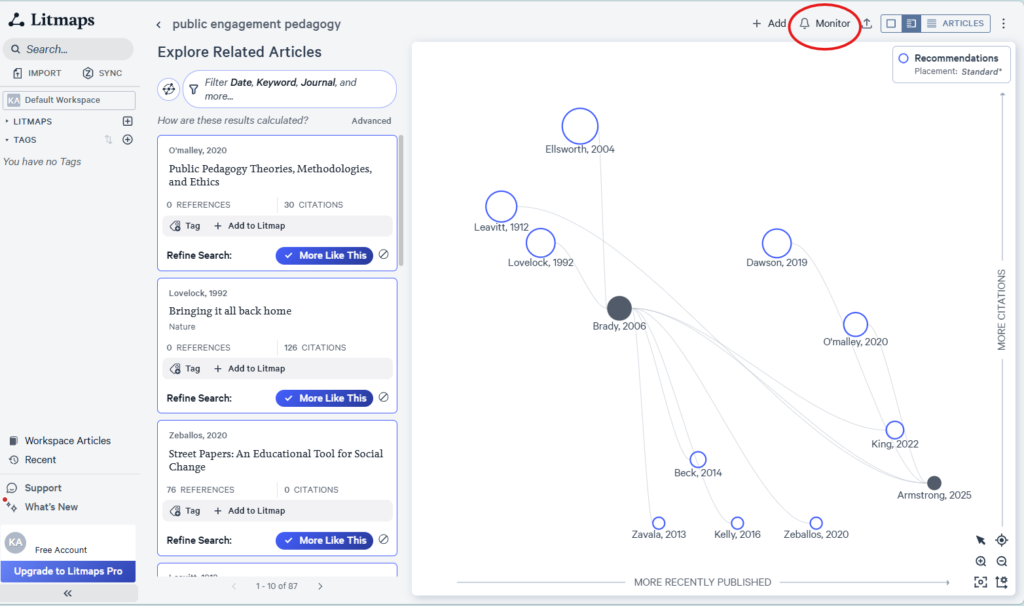
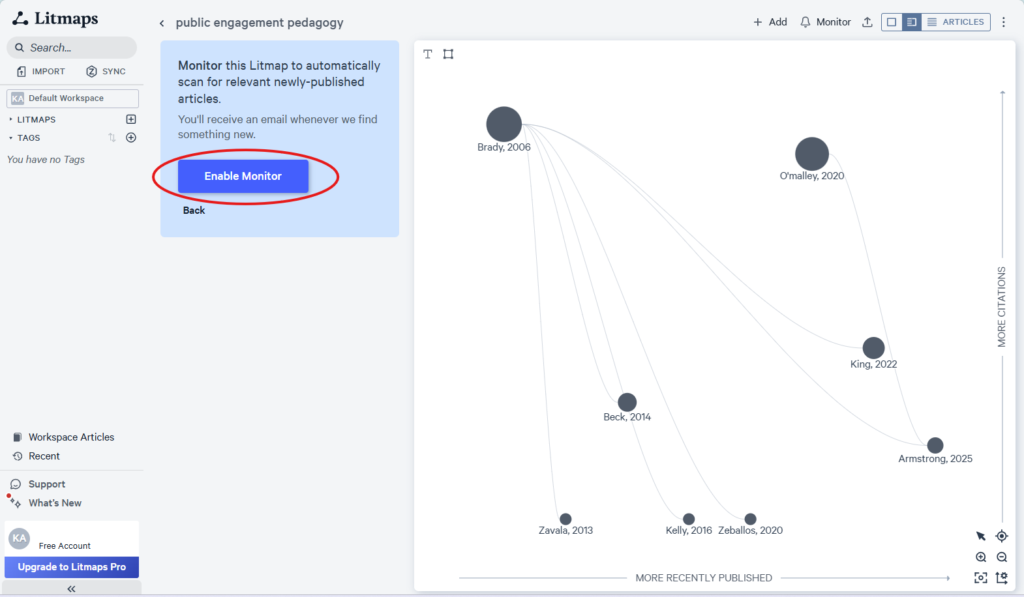
One of Litmaps’ useful features is email alerts for newly published papers. Because these alerts are based on your map search, they are likely to be highly relevant to your topic. To set up a monitor, create a map first, then click “Monitor” and “Enable Monitor” at the top of the screen (Figs. 4-1 and 4-2).
- How to Remove Articles from a Map
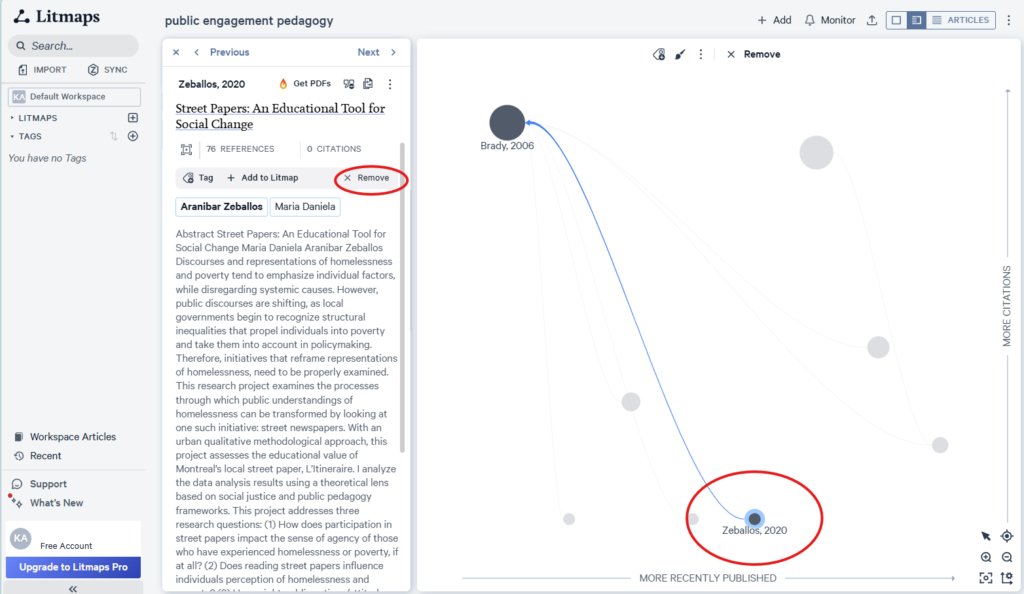
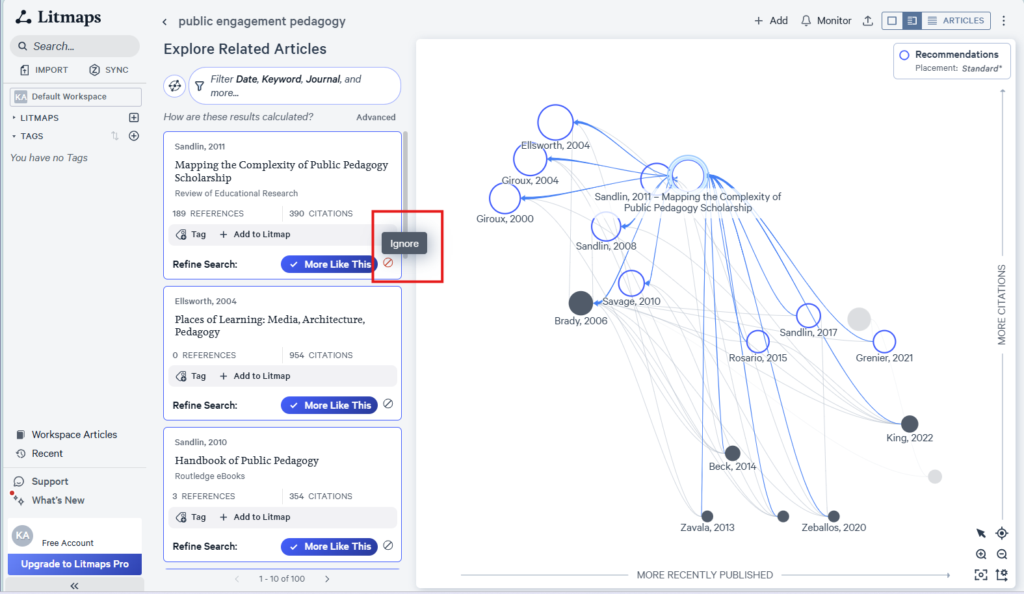
To remove an article from your map, select it from the map or the list view and click “Remove” (Fig. 5-1). You can also click the ignore icon next to “More Like This” to remove unwanted recommendations and refine the map further (Fig. 5-2).
- What If You Cannot Find the Paper You Want?
1. Start by Understanding the Data Coverage
Litmaps lets you search more than 270 million papers using open access metadata from sources such as Crossref, Semantic Scholar, and OpenAlex. Still, some papers may not appear in the database.
2. Use Filters and Boolean Operators
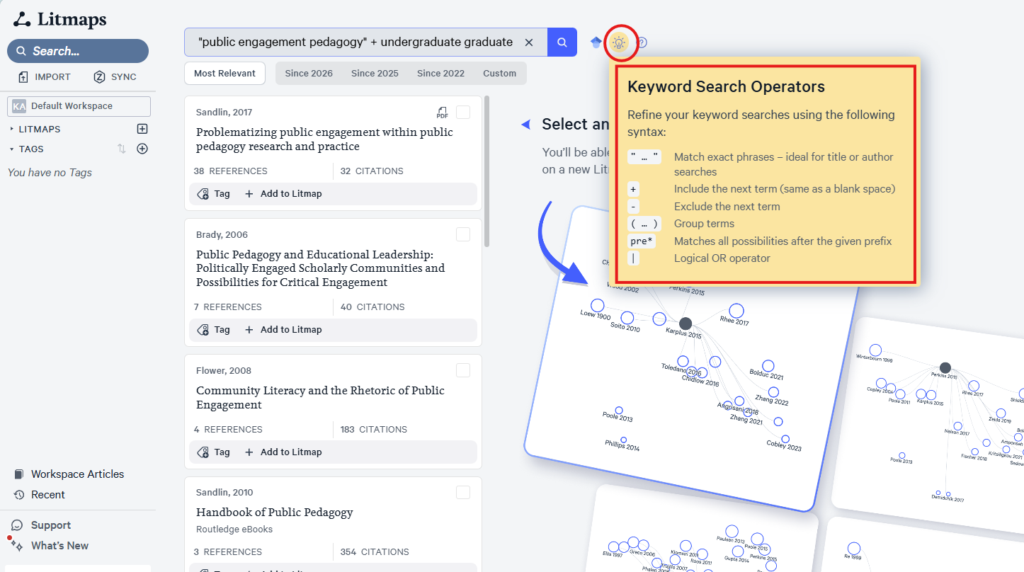
Litmaps supports keyword search operators such as AND, OR, and grouped terms. For more details, click the light bulb icon next to the search box (Fig. 6).
3. Import Your Own References
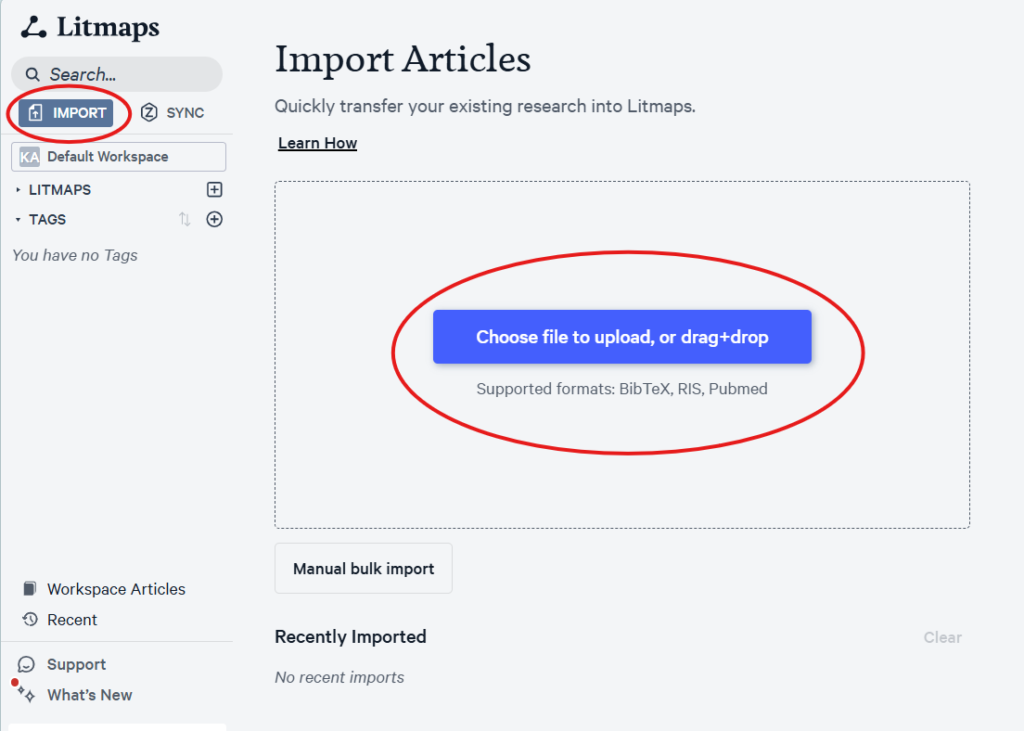
If you already have relevant papers from another database, you can also import them into Litmaps and generate the map. It supports BibTeX, RIS, or PubMed file format (Fig 7).
To do this, click “Import” at the top left, then choose “Import a file of your existing literature.” Alternatively, use “manual bulk import” and copy and paste a list of identifiers such as DOIs and titles. After the import is complete, select the papers you want and click “Explore Related Articles” to generate a map.
4. Exploring More Papers by Switching Algorithms
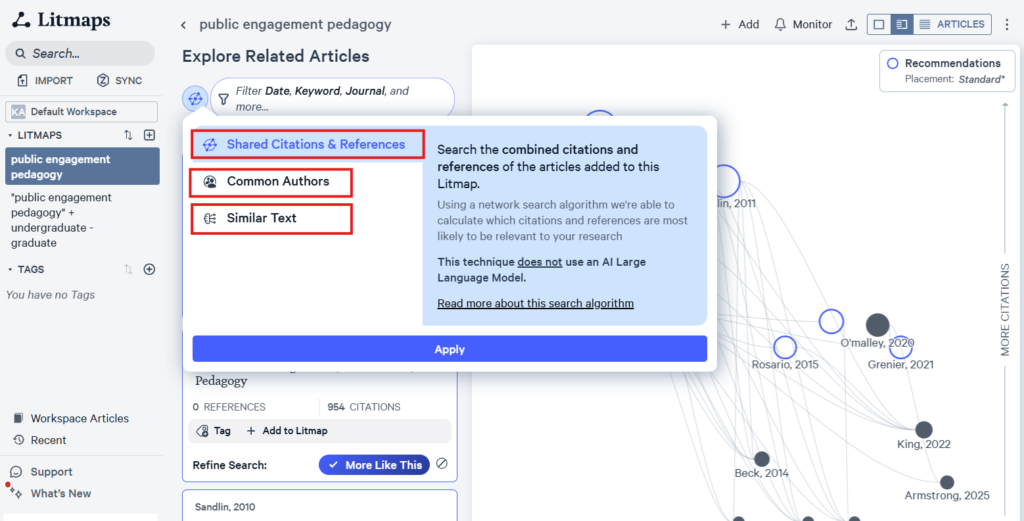
You can also find new papers by changing the search algorithm. Even if you switch algorithms, the results can still be reflected in the same map. To choose one of these algorithms, click “How are these results calculated?” after generating a map. A dropdown menu will then appear, allowing you to make your selection, including Shared Citations & References (default), Common Authors, and Similar Text (Fig 8).
Limitations
Litmaps is a helpful tool, but does not replace researchers’ judgement. As with any citation-based search, a high citation count does not always mean a paper is of high quality. For this reason, it is useful to combine different algorithms such as Common Authors and Similar Text. Even so, evaluating the quality and relevance of papers still remains the researcher’s responsibility.
The tool provides a visual overview. To use it well, researchers should organize their maps carefully and review them regularly, so they do not become too broad or cluttered.
Also, while Litmaps provides a free plan, features such as advanced filtering, unlimited workspaces, unlimited Litmaps, and unlimited articles per Litmap are only available with paid plans.
Extended Readings
References
Litmaps. (n.d.-a). Litmaps database: Coverage, open access, and article indexing. Litmaps Help Center. https://docs.litmaps.com/en/articles/7212085-litmaps-database-coverage-open-access-and-article-indexing
Litmaps. (n.d.-b). Look up articles in Litmaps. Litmaps Help Center. https://docs.litmaps.com/en/articles/9922995-look-up-articles-in-litmaps
Litmaps. (n.d.-c). Monitor: Get alerts for important research. Litmaps Help Center. https://docs.litmaps.com/en/articles/9126249-monitor-get-alerts-for-important-research
Litmaps. (n.d.-d). Search for articles with Litmaps. Litmaps Help Center. https://docs.litmaps.com/en/articles/9092911-search-for-articles-with-litmaps
Declaration of Generative AI Use
I acknowledge the use of Generative AI tools in writing this post.
I used Perplexity and Copilot to draft and refine the language.
I declare that I reviewed and edited the contents as needed, and take full responsibility for the content of the post; And the information provided is complete and accurate.